Secrets Management

Securely store and manage API keys, tokens, and other sensitive configuration.
Overview
Orient's Secrets Manager provides a secure way to store sensitive values like:
- API keys for AI providers (OpenAI, Anthropic, etc.)
- Slack and WhatsApp tokens
- OAuth credentials for Google, GitHub, JIRA
- Webhook secrets
- Database credentials
Secrets are encrypted at rest and can be managed through the Dashboard.
Accessing Secrets
Via Dashboard
- Navigate to Dashboard, then the Secrets tab
- You will see a list of all configured secrets
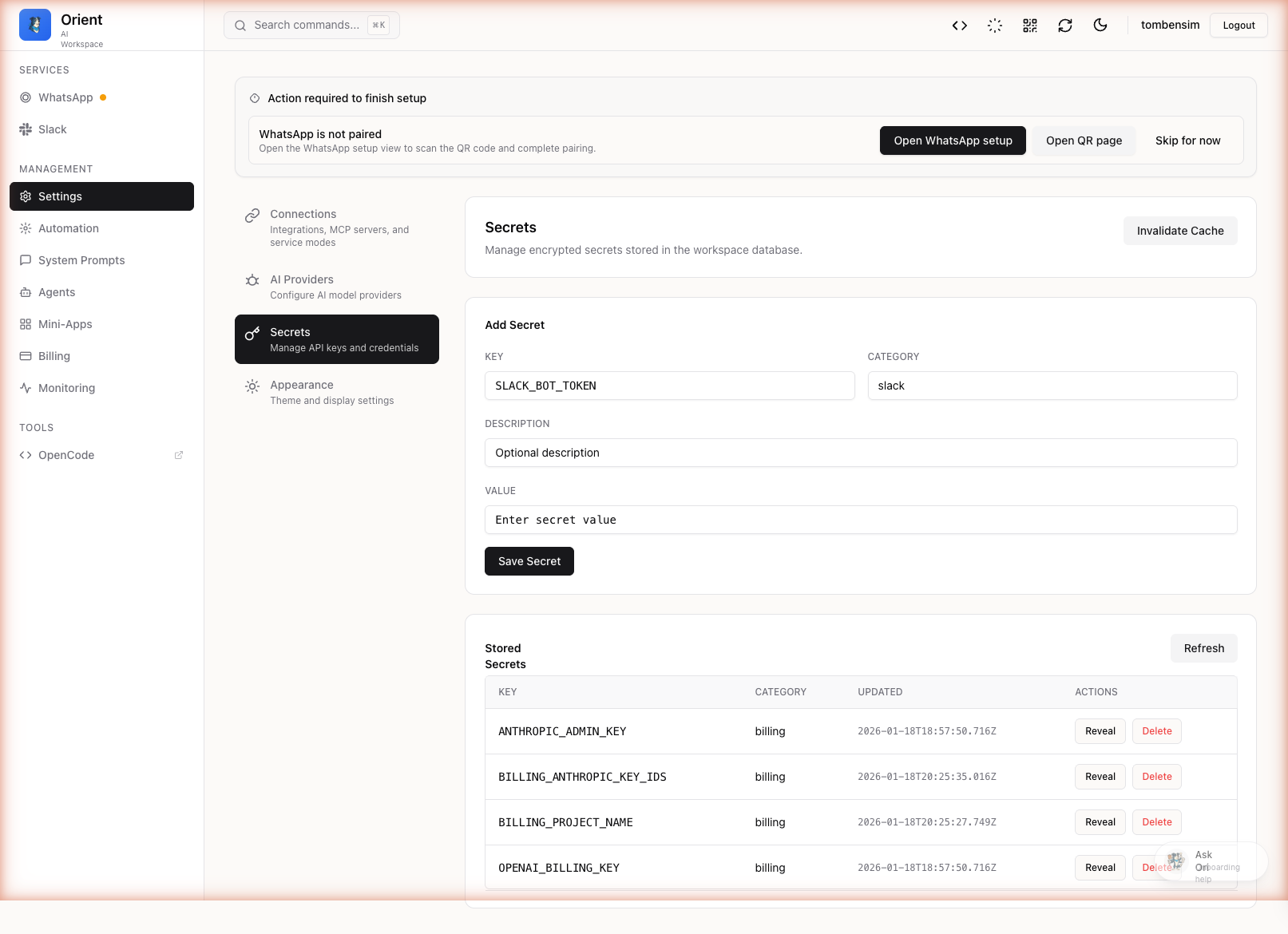
Secret Categories
Secrets are organized by category:
| Category | Examples |
|---|---|
| AI Providers | ANTHROPIC_API_KEY, OPENAI_API_KEY |
| Slack | SLACK_BOT_TOKEN, SLACK_APP_TOKEN, SLACK_SIGNING_SECRET |
WHATSAPP_ACCESS_TOKEN | |
GOOGLE_OAUTH_CLIENT_ID, GOOGLE_OAUTH_CLIENT_SECRET | |
| GitHub | GITHUB_TOKEN, GITHUB_APP_PRIVATE_KEY |
| JIRA | JIRA_API_TOKEN |
Adding a Secret
Step 1: Open Secrets Panel
Navigate to Dashboard, then Secrets tab.
Step 2: Add New Secret
- Click Add Secret or find an existing empty slot
- Enter the secret key (e.g.,
ANTHROPIC_API_KEY) - Enter the value
- Optionally add a description
- Click Save
Step 3: Apply Changes
Some secrets require a restart to take effect. The Dashboard will indicate if a restart is needed.
AI Provider Keys
Orient supports multiple AI providers. Configure their API keys in the Secrets panel:
Anthropic (Claude)
ANTHROPIC_API_KEY=sk-ant-...
OpenAI
OPENAI_API_KEY=sk-...
Google AI (Gemini)
GOOGLE_AI_API_KEY=...
Provider Defaults
You can set default providers for different use cases in the Providers tab:
- Chat: Which model to use for conversations
- Code: Which model to use for code generation
- Summary: Which model to use for summarization
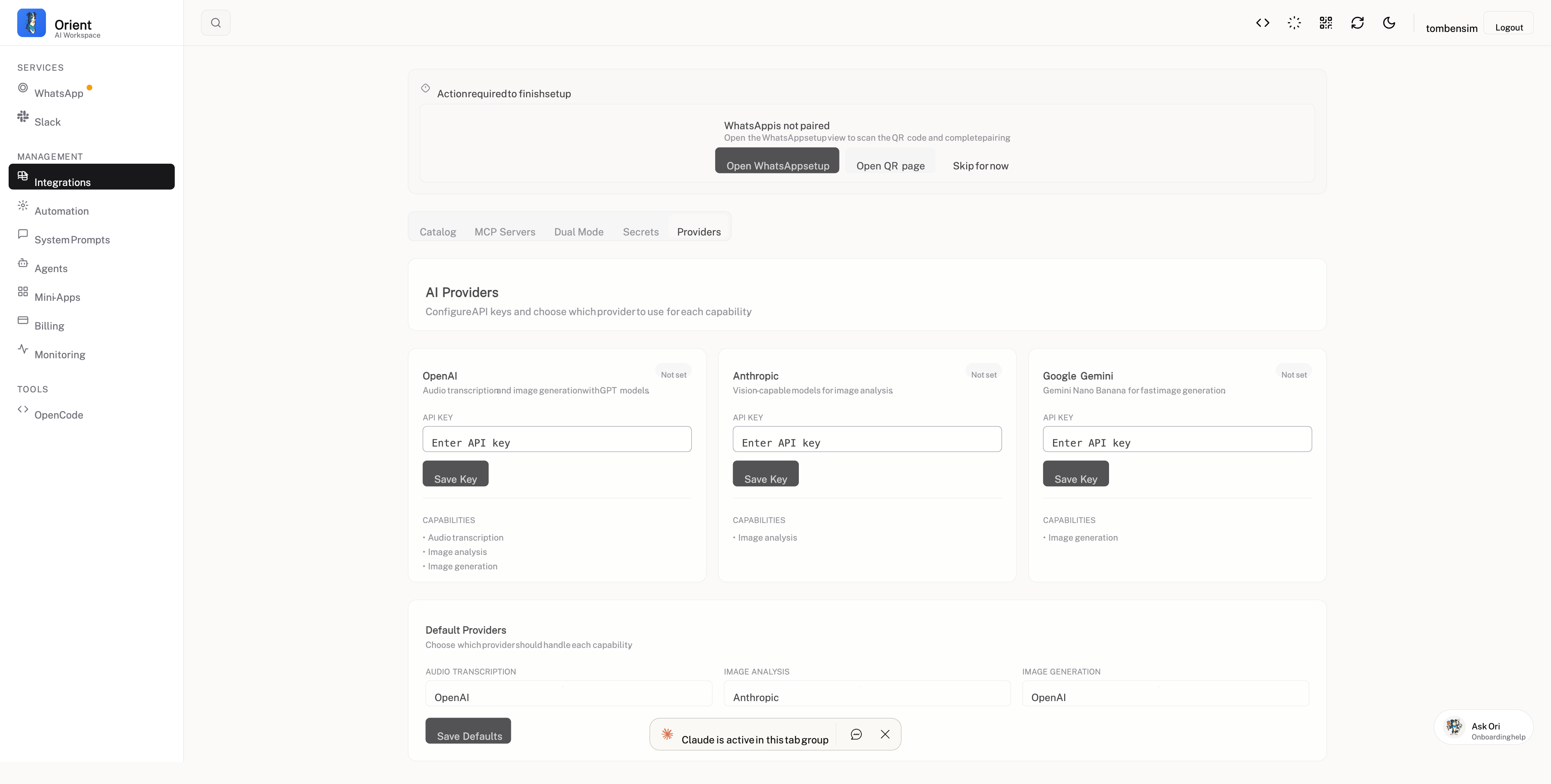
Integration Secrets
Slack
| Secret | Description |
|---|---|
SLACK_BOT_TOKEN | Bot User OAuth Token (starts with xoxb-) |
SLACK_SIGNING_SECRET | For verifying Slack requests |
SLACK_APP_TOKEN | App-level token for Socket Mode (starts with xapp-) |
SLACK_USER_TOKEN | Optional user token (starts with xoxp-) |
Google OAuth
| Secret | Description |
|---|---|
GOOGLE_OAUTH_CLIENT_ID | OAuth 2.0 Client ID |
GOOGLE_OAUTH_CLIENT_SECRET | OAuth 2.0 Client Secret |
GitHub
| Secret | Description |
|---|---|
GITHUB_TOKEN | Personal access token for API calls |
GITHUB_APP_ID | GitHub App ID (for app authentication) |
GITHUB_APP_PRIVATE_KEY | GitHub App private key |
JIRA
| Secret | Description |
|---|---|
JIRA_API_TOKEN | API token for JIRA Cloud |
JIRA_EMAIL | Email associated with the token |
JIRA_BASE_URL | Your JIRA instance URL |
Environment Variables vs Secrets
You can configure values in two ways:
| Method | Storage | Best For |
|---|---|---|
| Secrets (Database) | Encrypted in PostgreSQL | Production, sensitive values |
| Environment (.env) | Plain text file | Development, non-sensitive values |
Priority Order
- Secrets from database (highest priority)
- Environment variables
- Config file defaults
Security Best Practices
Do
- Use the Secrets panel for all sensitive values
- Rotate tokens regularly
- Use scoped tokens with minimal permissions
- Review secret access logs
Don't
- Commit secrets to version control
- Share secrets in chat or email
- Use the same token for dev and production
- Store secrets in plain text files
Audit Log
All secret changes are logged:
- Who made the change
- When it was made
- What was changed (key only, not value)
Troubleshooting
| Problem | Solution |
|---|---|
| Secret not taking effect | Restart Orient after adding secrets |
| "Invalid API key" errors | Verify the key is correct and has proper permissions |
| Cannot see secrets | Ensure you are authenticated as admin |
| Secret accidentally exposed | Rotate the token immediately |
Next Steps
- Configure webhooks for notifications
- Set up Slack integration
- Set up Google integration