Webhooks

Configure webhooks to receive notifications from external services like GitHub, JIRA, and Google Calendar.
What are Webhooks?
Webhooks allow external services to send real-time notifications to Orient. When something happens (like a new PR, a calendar event, or a JIRA ticket update), Orient receives the notification and can forward it to WhatsApp or Slack.
Supported Sources
| Source | Events |
|---|---|
| GitHub | Pull requests, issues, pushes, releases |
| JIRA | Issue created, updated, commented |
| Google Calendar | Event reminders, new events |
| Custom | Any JSON payload |
Creating a Webhook
Step 1: Open the Dashboard
Navigate to Dashboard, then the Webhooks tab.
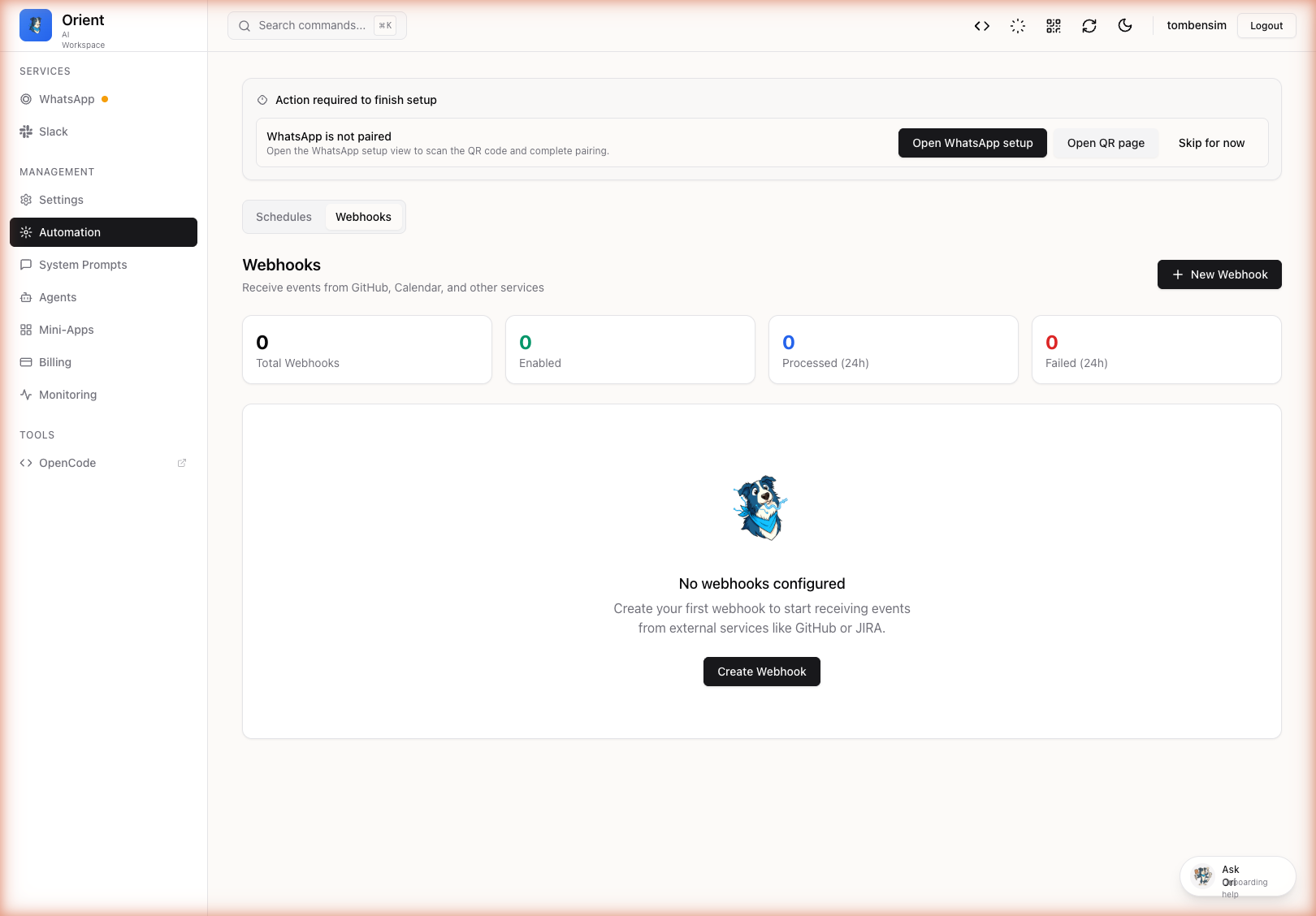
Step 2: Create New Webhook
- Click Create Webhook
- Fill in the configuration:
| Field | Description |
|---|---|
| Name | Unique identifier (e.g., github-prs) |
| Description | What this webhook does |
| Source Type | GitHub, JIRA, Calendar, or Custom |
| Provider | Where to send notifications (WhatsApp or Slack) |
| Target | Phone number/group or Slack channel |
| Event Filter | Which events to listen for (optional) |
Step 3: Copy the Webhook URL
After creating, you will receive a webhook URL like:
https://your-domain.com/api/webhooks/github-prs
And a secret token for verification.
Configuring GitHub Webhooks
- Go to your GitHub repository
- Navigate to Settings, then Webhooks
- Click Add webhook
- Configure:
- Payload URL: Your Orient webhook URL
- Content type:
application/json - Secret: The token from Orient
- Events: Choose which events to send
Recommended GitHub Events
pull_request- New PRs, reviews, mergesissues- New issues, commentspush- Code pushes (use sparingly)release- New releases
Configuring JIRA Webhooks
- Go to JIRA Settings
- Navigate to System, then Webhooks
- Click Create a WebHook
- Configure:
- URL: Your Orient webhook URL
- Events: Issue created, updated, etc.
Message Templates
Customize how webhook notifications appear using Handlebars templates:
Available Variables
Variables depend on the source. Common ones include:
GitHub PR:
{{pull_request.title}}{{pull_request.user.login}}{{pull_request.html_url}}{{action}}(opened, closed, merged)
JIRA Issue:
{{issue.key}}{{issue.fields.summary}}{{issue.fields.assignee.displayName}}
Webhook Events
View recent webhook events in the Dashboard:
- Go to Webhooks tab
- Click on a webhook to see its event history
- View payload, status, and any errors
Security
Signature Verification
Orient verifies webhook signatures to ensure requests are authentic:
- GitHub: Uses
X-Hub-Signature-256header with HMAC-SHA256 - JIRA: Uses custom header verification
- Custom: Configure your own signature header
Best Practices
- Always use HTTPS in production
- Keep webhook tokens secret
- Use event filters to reduce noise
- Monitor webhook events for failures
Troubleshooting
| Problem | Solution |
|---|---|
| Webhook not receiving events | Check the URL is correct and publicly accessible |
| Signature verification failed | Ensure the secret token matches |
| Events filtered out | Check your event filter configuration |
| Messages not sending | Verify the target WhatsApp/Slack channel has permissions |
Next Steps
- Configure secrets for API keys
- Set up scheduled messages
- Learn about chatting with the AI